
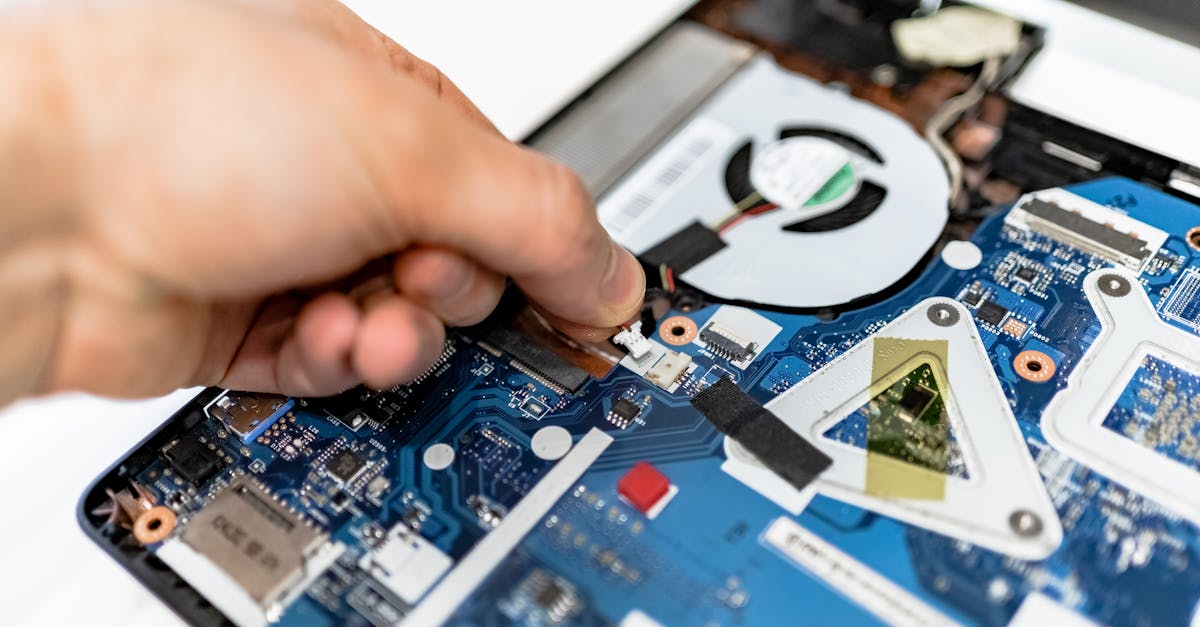
Why Upgrade Your Laptop?
A laptop that feels sluggish does not always need to be replaced. In many cases, upgrading the RAM and SSD can breathe new life into a machine for a fraction of the cost of buying new. These two components have the most direct impact on everyday responsiveness.
Step 1: Check Upgrade Compatibility
Before purchasing any components, you need to verify what your laptop supports.
RAM Compatibility
| Factor | What to Check |
|---|---|
| Form factor | SO-DIMM (standard for laptops) |
| Generation | DDR4 or DDR5 (not interchangeable) |
| Max capacity | Check manufacturer specs (often 16-64 GB) |
| Available slots | Some laptops have 1 slot, 2 slots, or soldered RAM |
| Speed | Match or exceed current module speed |
Use tools like CPU-Z (Windows) or check your laptop manufacturer's support page to find exact specifications. If your RAM is soldered to the motherboard (common in ultrabooks), upgrading is not possible.
SSD Compatibility
Most modern laptops use one of these SSD form factors:
- M.2 2280 NVMe: The most common format in laptops from 2018 onward. Supports PCIe Gen 3 or Gen 4.
- M.2 2242 NVMe: A shorter variant found in some compact laptops.
- 2.5-inch SATA: Found in older or budget laptops. Limited to ~550 MB/s.
Check whether your laptop's M.2 slot supports NVMe, SATA, or both — they use different keying.
Step 2: Choose the Right Components
RAM Selection Tips
- Match the existing module's speed if adding to an occupied slot
- For a full upgrade, buy a matched kit (two identical modules) for dual-channel performance
- 16 GB is the sweet spot for most users in 2025; 32 GB for power users
SSD Selection Tips
- Prioritize drives with DRAM cache for your boot drive
- 1 TB offers the best price-to-capacity ratio currently
- Check the drive's thickness — some M.2 drives with heatsinks may not fit
Step 3: Installation Process
Tools You Will Need
- Phillips-head screwdriver (often #0 or #1)
- Plastic spudger or guitar pick for prying clips
- Anti-static wrist strap (recommended)
General Steps
- Power off the laptop completely and disconnect the charger
- Remove the bottom panel screws (note different screw lengths)
- Disconnect the battery cable from the motherboard
- For RAM: release the side clips, remove old module at an angle, insert new module at 30 degrees and press down until clips engage
- For SSD: remove the mounting screw, slide out the old drive, insert the new drive and secure with the screw
- Reconnect the battery, replace the bottom panel, and power on
Step 4: Post-Installation Setup
After installing a new SSD, you have two options:
- Clone your existing drive using software like Macrium Reflect or Samsung Data Migration
- Fresh install your operating system for a clean start
For RAM upgrades, your system should automatically detect the new memory. Verify in Task Manager (Windows) or System Information that the full capacity is recognized.
Common Pitfalls to Avoid
- Forcing a module into the wrong slot orientation
- Forgetting to disconnect the battery before working
- Mixing RAM speeds or brands (can cause instability)
- Not backing up data before an SSD swap
Upgrading your laptop is one of the most cost-effective ways to improve performance. Authorain provides compatible RAM and SSD options with clear specifications, making it easy to find the right upgrade for your machine.